Data Shaping
Summarization
To obtain numeric values that should be displayed within a dashboard item, Dashboard calculates a summary function against the specified measure.This is applied at the element levle. See Summary for calculating at the data model levle.
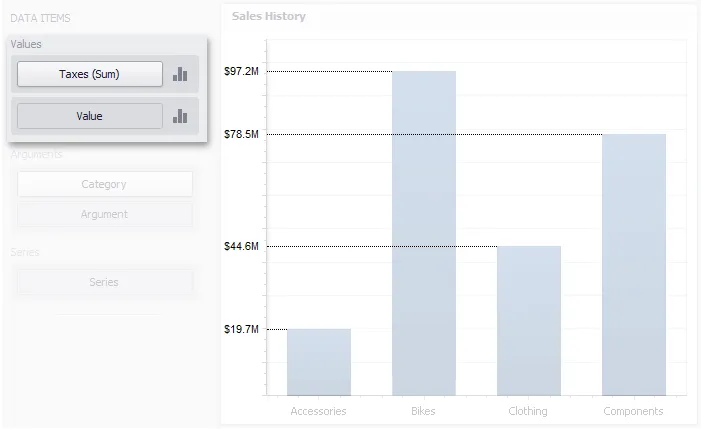
Summary Function Types
The following summary functions are available.
- Count - The number of values (excluding Null and DBNull values).This is the only summary type that can be calculated against non-numeric data.
- Count Distinct - The number of distinct values.
- Sum - The sum of the values.
- Min - The smallest value.
- Max - The largest value.
- Average - The average of the values.
- StdDev - An estimate of the standard deviation of a population, where the sample is a subset of the entire population.
- StdDevP - The standard deviation of a population, where the population is the entire data to be summarized.
- Var - An estimate of the variance of a population, where the sample is a subset of the entire population.
- VarP - The variance of a population, where the population is the entire data to be summarized.
- Median - The median of the values (excluding Null and DBNull values). A median is the number separating the higher half of a value range from the lower half.
Changing Summary Type
By default, Dashboard calculates Sum for numeric measures and Count for measures that contain another type of data.
You can change the summary function type for numeric measures. To do this in the Designer, invoke the data item menu and select the desired summary type. Less common summary types are organized in the More submenu.
Grouping
The Dashboard Designer allows you to group dimension values and display summaries for entire groups rather than individual values.
You can arrange dimension values in groups of different sizes by specifying the appropriate group interval. For instance, date-time values can be grouped by years, months, quarters, etc.
This topic lists the supported text and date-time group intervals, and describes how to change the group interval.
Text Group Intervals
String values support the following grouping intervals.
- No Grouping - each value is displayed "as is".
- Alphabetical - values are grouped alphabetically (e.g., A, B, C, ... Z).
Date-Time Group Intervals
Date-time values support the following group intervals.
Group interval | Description | Examples |
|---|---|---|
Year | Values are grouped by the year. | 2010, 2011, 2012 |
Quarter | Values are grouped by the quarter. | Q1, Q2, Q3, Q4 |
Month | Values are grouped by the month. | January, February, March, ... December |
Day | Values are grouped by the day of the month. | 1, 2, 3, ... 31 |
Hour | Values are grouped by the hour. | 0, 1, 2, ... 23 |
Minute | Values are grouped by the minute. | 0, 1, 2, ... 59 |
Second | Values are grouped by the second. | 0, 1, 2, ... 59 |
Day of the Year | Values are grouped by the day of the year. | 1, 2, 3, ... 365 |
Day of the Week | Values are grouped by the day of the week. | Sunday, Monday, Tuesday, ... Saturday |
Week of the Year | Values are grouped by the week of the year. | 1, 2, 3, ... 52 |
Week of the Month | Values are grouped by the week of the month. | 1, 2, 3, 4, 5 |
Week-Year | Values are grouped by the date of the first day of the week (uses culture settings). | 7/1/2018, 7/8/2018, 7/15/2018, ... 11/4/2018, 11/11/2018, 11/18/2018, ... |
Month-Year | Values are grouped by the year and month. | January 2012, February 2012, ... December 2012, January 2013, ... |
Quarter-Year | Values are grouped by the year and quarter. | Q3 2012, Q4 2012, Q1 2013, Q2 2013, ... |
Day-Month-Year | Values are grouped by date. | 3/4/2012, 3/5/2012, 3/6/2012, ... |
Date-Hour | Values are grouped by date with the hour value. | 3/4/2012 0:00 AM, 3/4/2012 1:00 AM, 3/4/2012 2:00 AM, ... |
Date-Hour-Minute | Values are grouped by date with the hour and minute values. | 3/4/2012 0:00 AM, 3/4/2012 0:01 AM, 3/4/2012 0:02 AM, ... |
Date-Hour-Minute-Second | Values are grouped by date with the hour, minute and second values. | 3/4/2012 0:00:00 AM, 3/4/2012 0:00:01 AM, 3/4/2012 0:00:02 AM, ... |
Exact Date | Each value is displayed "as is". | 2009, Q2 2009, 6/15/2009 1:45:30 PM, ... |
Changing Group Interval
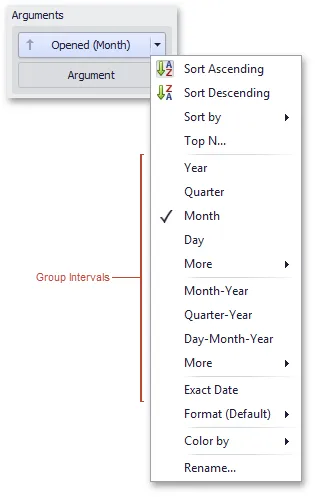
To specify the group interval in the Designer, invoke the data item menu and select the desired group interval. Less common group intervals are organized in the More submenus.
Sorting
Changing Sort Order
The sort order of dimension values is indicated with an arrow.
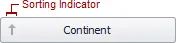
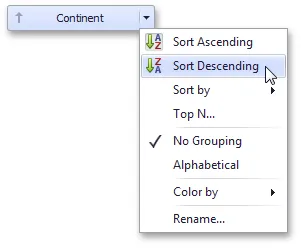
To change the sort order in the Designer, click the data item. You can also toggle sorting from the data item menu.
Sorting by Measure Values
Dashboard allows you to sort dimension values by summary values calculated for a specific measure.
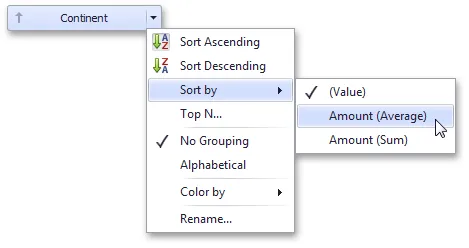
To enable sorting by measure in the Designer, use the Sort by submenu in the dimension's menu.
Filtering
The Dashboard Designer allows you to filter data in the dashboard items or apply filters to a specific measure.
Dashboard Item Filter
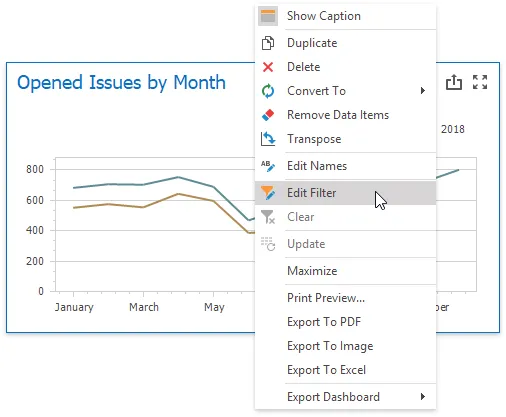
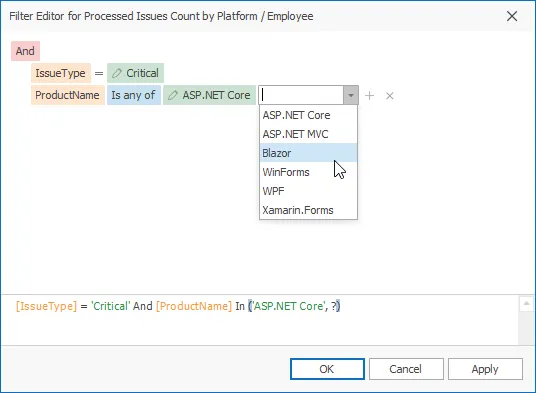
Filters that apply to a Dashboard Elements affect only this item. To add filters, select the target dashboard item and do one of the following:
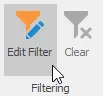
- Click the Edit Filter button in the Ribbon menu's Data tab.
- Right-click a dashboard item and select Edit Filter from its context menu.
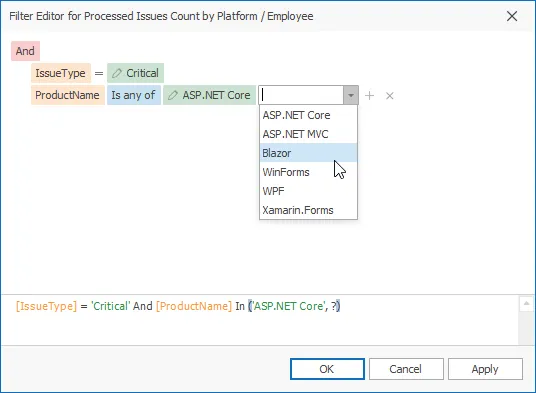
This invokes the filter editor dialog that allows you to build complex filter criteria:
To clear the applied filter, select Clear from the dashboard item's context menu or click the Clear button in the Data Ribbon tab.
Measure Filter
You can apply filters to individua measures. If you create multiple measures that only differ in applied filters, you can compare values calculated over different date-time periods or against different categories.
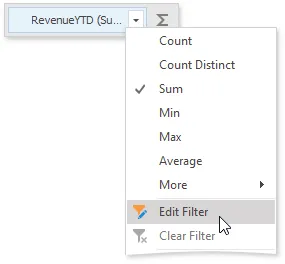
Select a dashboard item and right-click a measure to be filtered. Select Edit Filter from its context menu.
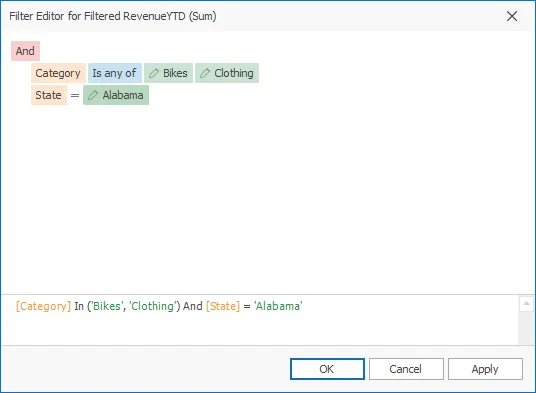
This invokes the Filter Editor dialog where you can specify filter criteria:
The filtered measure has the Filter icon:

To clear the applied filter, select Clear from the measure's context menu.
[!Note] The measure filter is technically an expression that uses the filter(summaryExpression, filterCriteria) function, where summaryExpression is the measure to be filtered and filterCriteria is the filter.
Visible Data Filter

You can specify a Visible Data Filter to limit displayed data. This filter type does not filter underlying data used in calculations or intermediate level aggregations.
Click the Set Visible Data Filter button in the Ribbon menu's Data tab to invoke the Visible Data Filter Editor, where you can set a filter condition:
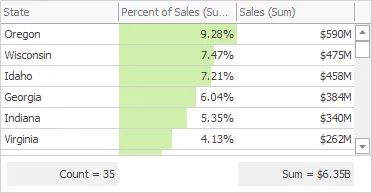
For example, a Grid dashboard item has 35 rows and displays sales percentages.
The image below shows the difference between filters (the filter condition is the same):
- Dashboard Item Filter: sales percentages are recalculated based on the visible data.
- Visible Data Filter: sales percentages remain the same because this filter type does not affect calculations.
Pass Parameter Values
You can use the Filter Editor to filter a dashboard item according to the current parameter value. See the following topic for details: Pass Parameter Values.
Top N
The Top N feature allows you to display only a limited number of values that correspond to the highest or lowest values of a particular measure.
To display the top values in a dimension, select Top N from the data item menu.
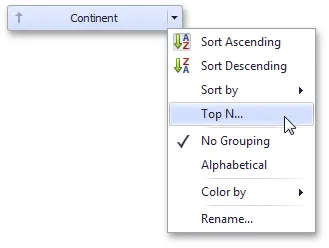
This invokes the Top N Values dialog.
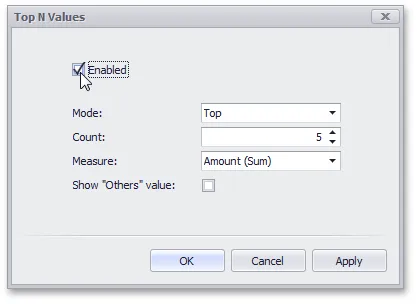
In this dialog, check the Enabled check box and specify the following settings.
Setting | Description |
|---|---|
Mode | Specifies whether top or bottom values should be displayed. |
Count | The number of values to be displayed. |
Measure | The parameter that will determine the top or bottom value. |
Show "Others" value | If enabled, all values that are not the top/bottom values are consolidated in the "Others" value. |
Formatting Data
Dashboard allows you to customize various data format settings for numeric and date-time values.
Formatting Numeric Values
To specify a format for numeric values, select Format from the data item menu.
This invokes the Numeric Format window.
In the Format type field, select the required format type.
Format Type | Description |
|---|---|
Auto | Format settings are automatically determined based on the data type. |
General | Converts a number to the most compact of either fixed-point or scientific notation, depending on the type of the number. |
Number | Converts a number to a string of the "-d,ddd,ddd.ddd…" form where "-" indicates a negative number symbol (if required), "d" indicates a digit (0-9), "," indicates a group separator, and "." indicates a decimal point symbol. |
Currency | Converts a number to a string that represents a currency amount. To learn about currency formatting specifics, |
Scientific | Converts a number to a string of the "-d.ddd…E+ddd" or "-d.ddd…e+ddd" form where each "d" indicates a digit (0-9). |
Percent | Multiplies a number by 100 and converts it to a percentage string. |
Other format settings are in effect for only specific format types.
Setting | Description | Format Types |
|---|---|---|
Unit | The unit to which values should be converted. | Number, Currency |
Precision | The number of fractional digits that should be displayed. | Scientific, Percent |
Currency | Defines the currency sign and format settings that should be used to display currency values. To learn about currency formatting specifics, see the Currency Formatting Specifics section of this document. | Currency |
Currency culture | For currencies used in a region with several cultures, specifies the culture that defines format settings. | Currency |
Include group separator | Specifies whether or not separators should be inserted between digit groups. | Number, Currency, Percent |
Formatting Date-Time Values
To specify a format for date-time values, use the Format submenu in the data item menu.
[!NOTE] Specific group intervals do not have format options. This means that corresponding values can only be presented in a single manner. The Format submenu is not displayed for such group intervals.
The following list shows format types by group interval.
- Year
- Full - The full year pattern (Example - 6/15/2017 1:45:30 PM -> 2017 (en-US)).
- Abbreviated - The year from 00 to 99 (Example - 6/15/2017 1:45:30 PM -> 17 (en-US)).
- Quarter
- Full - The full quarter pattern (Example: 6/15/2017 1:45:30 PM -> Q2 (en-US)).
- Numeric - The quarter from 1 through 4 (Example: 6/15/2017 1:45:30 PM -> 2 (en-US)).
- Month
- Full - The full name of the month (Example: 6/15/2017 1:45:30 PM -> June (en-US)).
- Abbreviated - The abbreviated name of the month (Example: 6/15/2017 1:45:30 PM -> Jun (en-US)).
- Numeric - The month from 1 through 12 (Example: 6/15/2017 1:45:30 PM -> 6 (en-US)).
- Hour
- Long - Long hour pattern, 12-hour format (Example: 6/15/2017 1:45:30 PM -> 1:00 PM).
- Short - Short hour pattern, 24-hour format (Example: 6/15/2017 1:45:30 PM -> 13).
- Day of Week
- Full - The full name of the day of the week (Example: 6/15/2017 1:45:30 PM -> Monday (en-US)).
- Abbreviated - The abbreviated name of the day of the week (Example: 6/15/2017 1:45:30 PM -> Mon (en-US)).
- Numeric - The day of the week from 1 through 7 (Example: 6/15/2017 1:45:30 PM -> 2 (en-US)).
- Day-Month-Year
- Long - Long date pattern (Example: 6/15/2017 1:45:30 PM -> Monday, June 15, 2017 (en-US)).
- Short - Short date pattern (Example: 6/15/2017 1:45:30 PM -> 6/15/2017 (en-US)).
- Date-Hour
- Long - Long date pattern, long hour pattern (Example: 6/15/2017 1:45:30 PM -> Monday, June 15, 2017 1:00 PM (en-US)).
- Short - Short date pattern, long hour pattern (Example: 6/15/2017 1:45:30 PM -> 6/15/2017 1:00 PM (en-US)).
- Time only - Long hour pattern (Example: 6/15/2017 1:45:30 PM -> 1:00 PM (en-US)).
- Date-Hour-Minute
- Long - Long date pattern, long time pattern (Example: 6/15/2017 1:45:30 PM -> Monday, June 15, 2017 1:45 PM (en-US)).
- Short - Short date pattern, long time pattern (Example: 6/15/2017 1:45:30 PM -> 6/15/2017 1:45 PM (en-US)).
- Time only - Long time pattern (Example: 6/15/2017 1:45:30 PM -> 1:45 PM (en-US)).
- Date-Hour-Minute-Second
- Long - Long date pattern, long time pattern (Example: 6/15/2017 1:45:30 PM -> Monday, June 15, 2017 1:45:30 PM (en-US)).
- Short - Short date pattern, long time pattern (Example: 6/15/2017 1:45:30 PM -> 6/15/2017 1:45:30 PM (en-US)).
- Time only - Long time pattern (Example: 6/15/2017 1:45:30 PM -> 1:45:30 PM (en-US)).
The list below illustrates format types related to the Exact Date group interval.
- Year
- Full - The full year pattern (Example: 6/15/2017 1:45:30 PM -> 2017 (en-US)).
- Abbreviated - The year from 00 to 99 (Example: 6/15/2017 1:45:30 PM -> 17 (en-US)).
- Quarter
- n/a - The default year and full quarter pattern (Example: 6/15/2017 1:45:30 PM -> Q2 2017 (en-US)).
- Month
- n/a - The default year pattern and the full name of the month (Example: 6/15/2017 1:45:30 PM -> June, 2017 (en-US)).
- Day
- Long - Long date pattern (Example: 6/15/2017 1:45:30 PM -> Monday, June 15, 2017 (en-US)).
- Short - Short date pattern (Example: 6/15/2017 1:45:30 PM -> 6/15/2017 (en-US)).
- Hour
- Long - Long date pattern, long time pattern (Example: 6/15/2017 1:45:30 PM -> Monday, June 15, 2017 1:00 PM (en-US)).
- Short - Short date pattern, long time pattern (Example: 6/15/2017 1:45:30 PM -> 6/15/2017 1:00 PM (en-US)).
- Time only - Long time pattern (Example: 6/15/2017 1:45:30 PM -> 1:00 PM (en-US)).
- Minute
- Long - Long date pattern, long time pattern (Example: 6/15/2017 1:45:30 PM -> Monday, June 15, 2017 1:45 PM (en-US)).
- Short - Short date pattern, long time pattern (Example: 6/15/2017 1:45:30 PM -> 6/15/2017 1:45 PM (en-US)).
- Time only - Long time pattern (Example: 6/15/2017 1:45:30 PM -> 1:45 PM (en-US)).
- Second
- Long - Long date pattern, long time pattern (Example: 6/15/2017 1:45:30 PM -> Monday, June 15, 2017 1:45:30 PM (en-US)).
- Short - Short date pattern, long time pattern (Example: 6/15/2017 1:45:30 PM -> 6/15/2017 1:45:30 PM (en-US)).
- Time only - Long time pattern (Example: 6/15/2017 1:45:30 PM -> 1:45:30 PM (en-US)).
Currency Formatting Specifics
The Dashboard allows you to specify a currency format at two levels: for the entire dashboard and for individual data items.