Quick Start Guide
This guide will provide a simple workflow for starting the AMICS Reports and loading AMICS data into the Project Management system. It will also provide basic instructions on setting up dashboards and report templates. However, users should read through the more advanced sections to become fully informed about using this application.
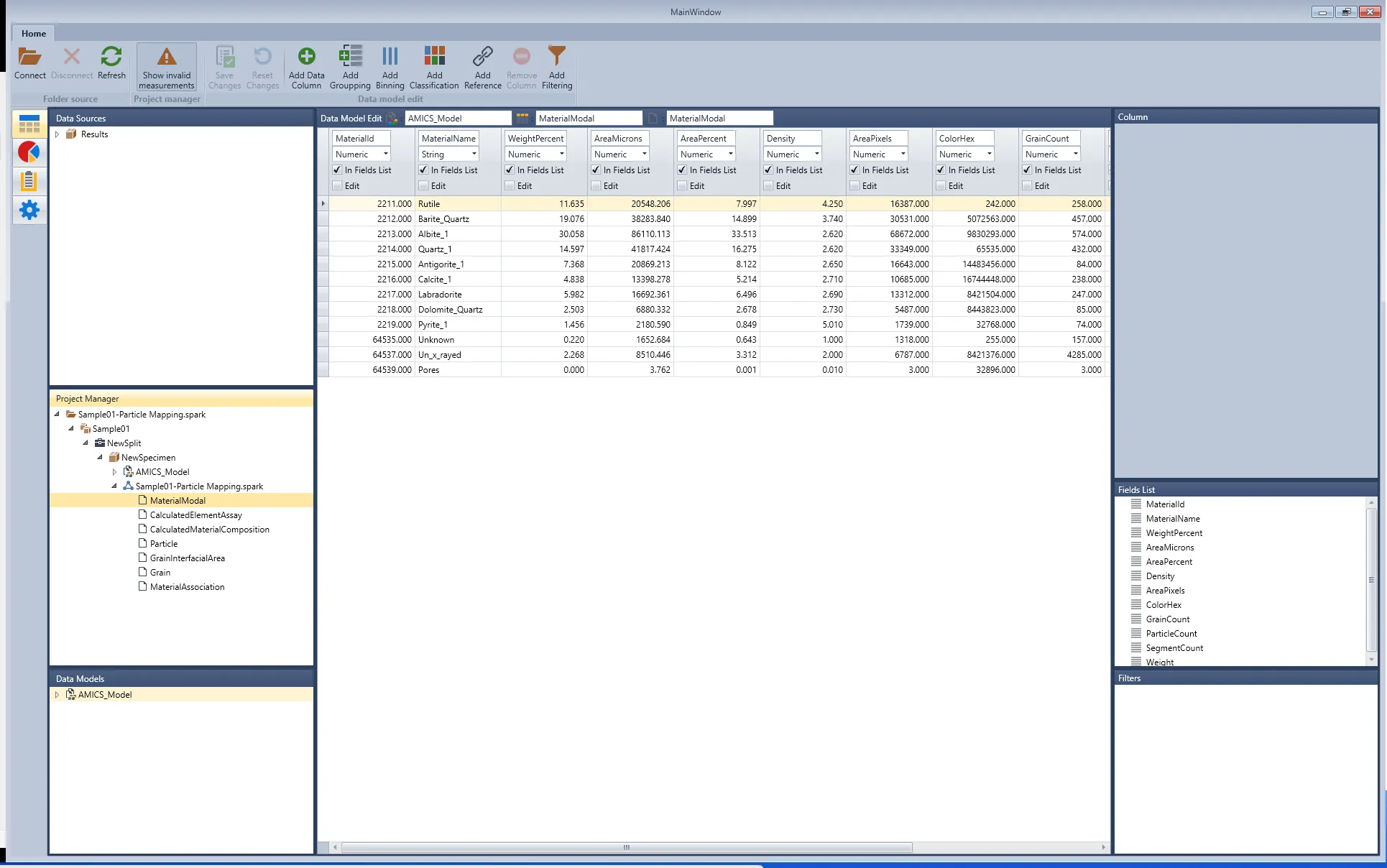
AMICS Reports can be started from the Windows Start Menu or manually run the signed executable. The first time the application loads, files will need to be set up for future use so that the initial load time will be longer than usual. However, this will only occur for the first time run on a system. Once loaded, the default initial interface will look like this.
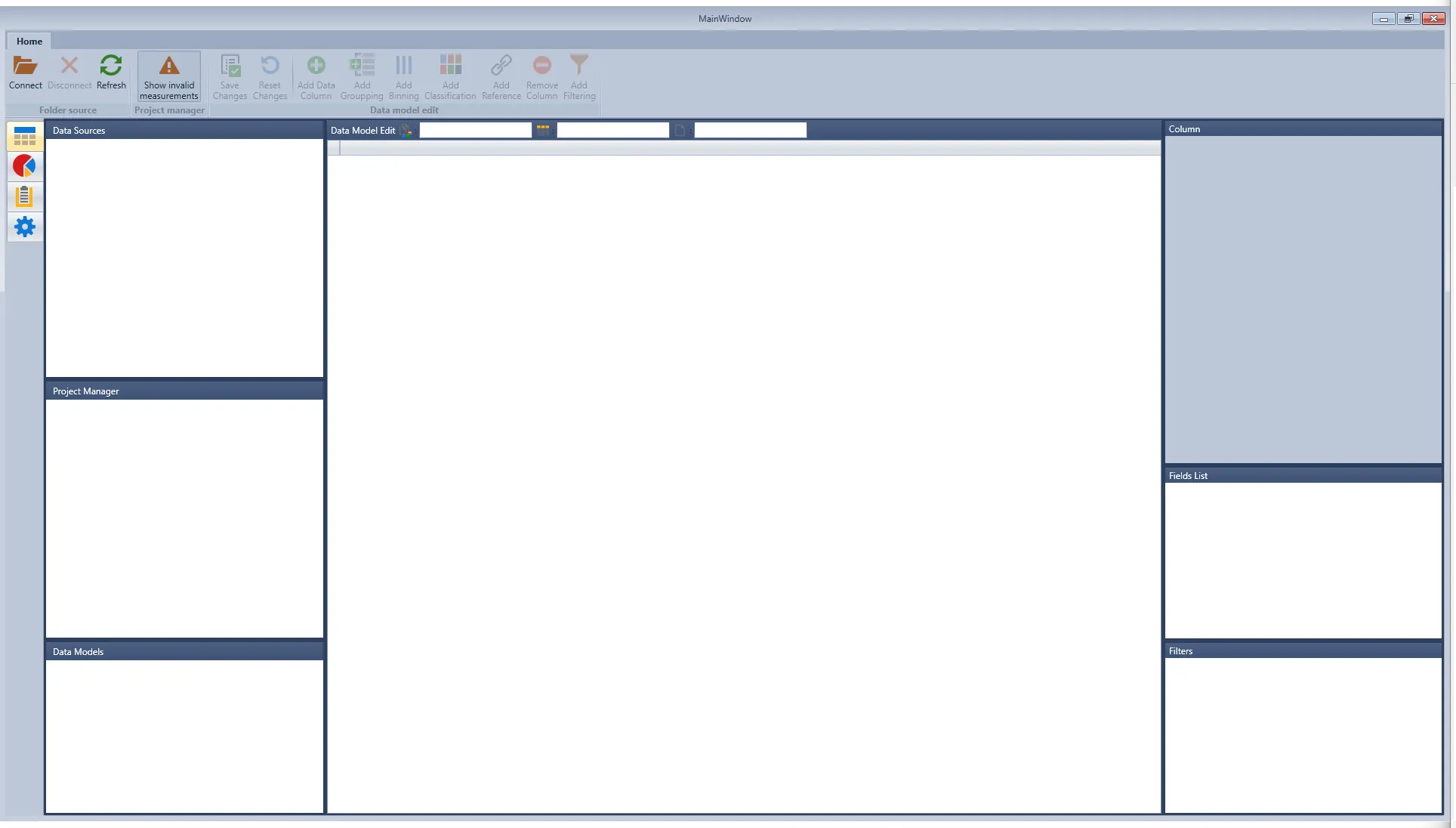
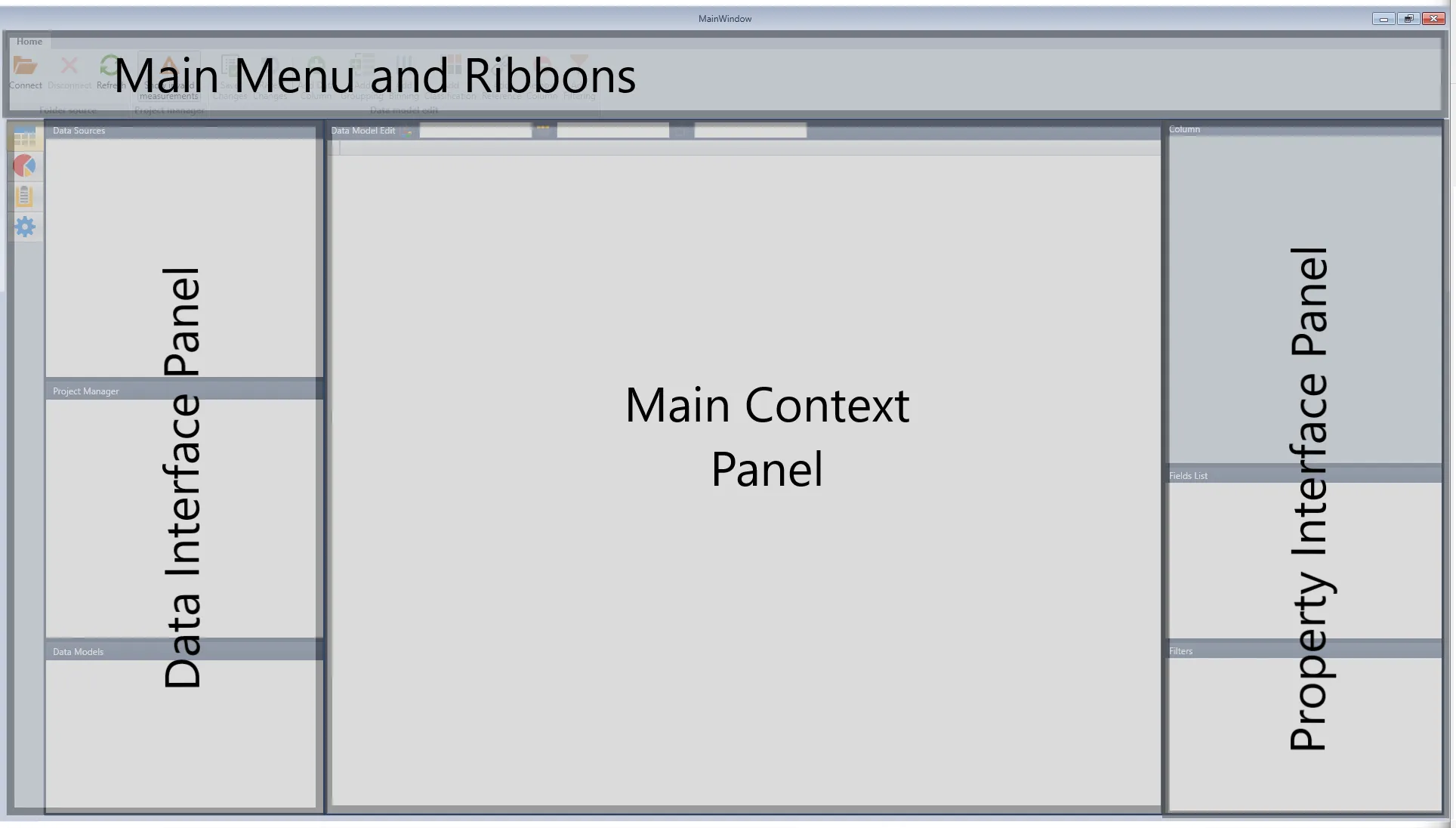
This interface is divided into several sections, providing access to four main functional groups within AMICS Reports (see image below). Later sections of this manual provide further details on the interface.
Connecting Data
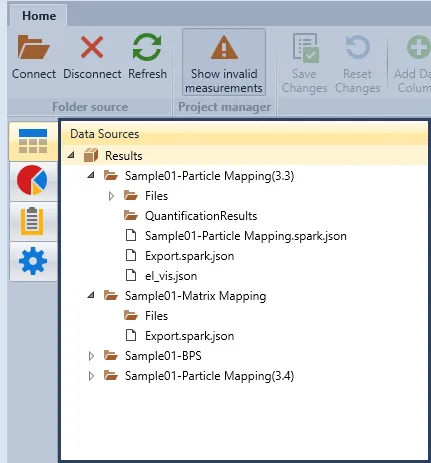
To connect to an data source, click the "Connect" option in the Reports interface's Main Menu and Ribbons section. This will bring up a standard Windows folder dialog, allowing the users to select a folder containing the designed data. Once a folder is selected, the Reports will show the folder in the "Data Source" subpanel in the Data Interface Panel. The imported folder will contain all the subfolders and will allow access to relevant data types within any subfolders (i.e., .spark.json or .csv).
NOTE!
AMICS Reports does not copy or move any data, and the Data Source represents a pointer to the existing folder location. This ensures the Reports do not disturb the user's folder data structures. Still, it also means moving data in Windows will break the AMICS Reports' connection and invalidate the Data Source.
Supported Formatrs
The system can funcation with the following file format.
- *.CSV
- *.SPARK.JOSN with and without inditation
- *.SPARK.BIN spark binary file with and without inditation
- *.JSON X-Y locaiton file from Hitachi FT230
- *.TIFF
- *.JPEG
- *.BMP
- *.PNG
Additional file formats can be added upon requies as part of special project.
Parsing a *.CSV File
CSV files must be parsed to be imported into the system and used.
- Connect to a folder (see above).
- Make a new folder or use an existing folder without an attached data model.
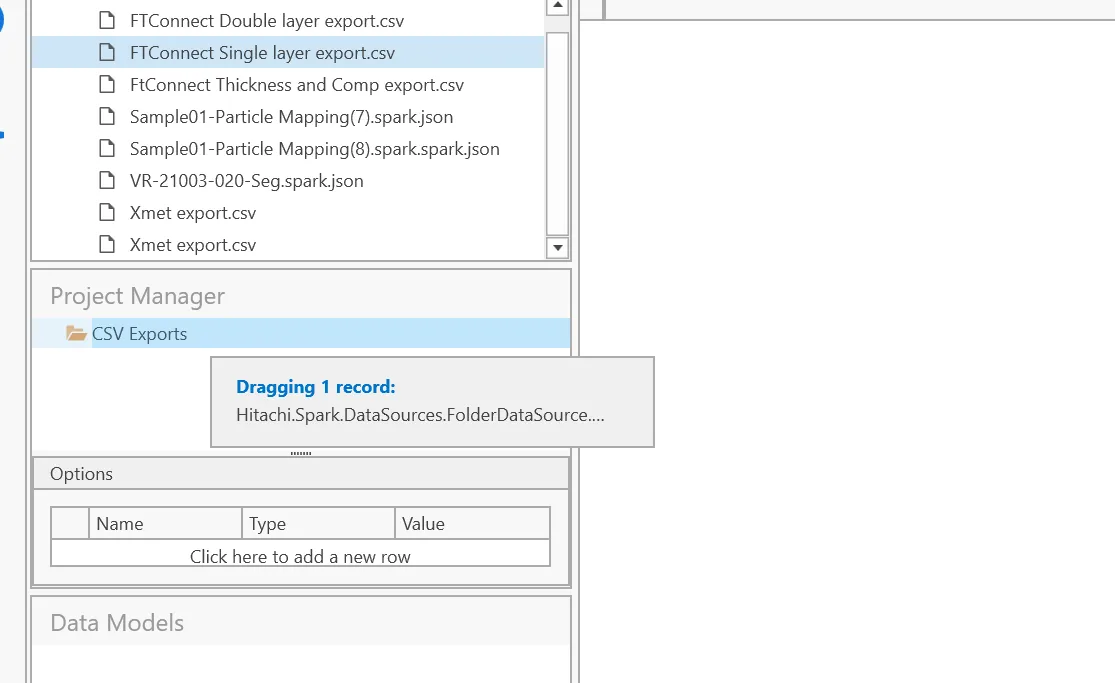
- Drag the *.CSV file into the folder. This will open the parsing window.
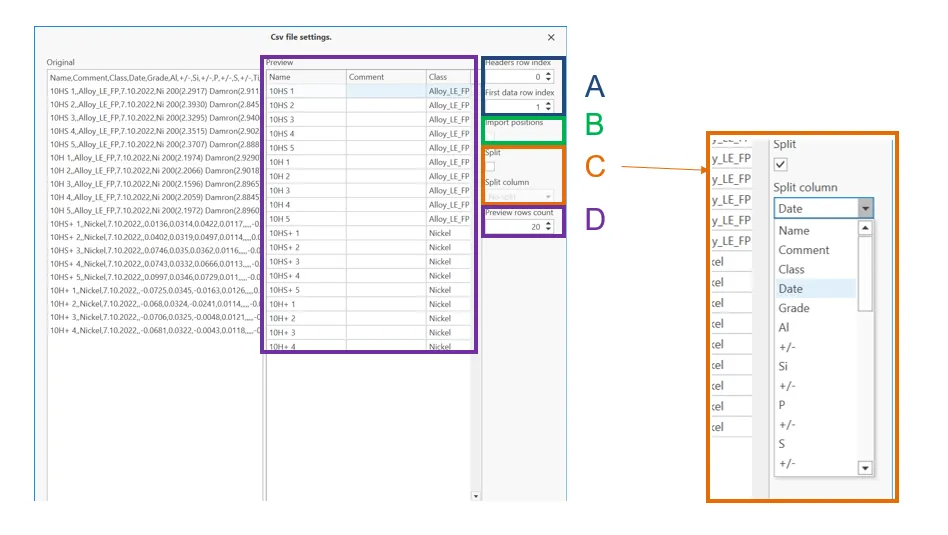
- Designate the header rows and data starting rows (A)
- If data if from a Hitachi FT230 connect the *CSV file to the JSON positions with the import positions option (B)
- If the CSV contines many measurements as rows sleect "split" to import the *.CSV with each row as an expiriment (C). This will allows the uset to move the infomration (expiriments) logically in the project managment system without having to seperate the data into diffrent physical files.
- Select the number of rows to preview.
Select a UUID or timestamp as the most efficient way to seperate a *.CSV file. The system will automatically combine any entires that have the same name into a single expiriment. This function can also be used to seperate measurmenets by any logical combination contianed in the file.
Project Manager Setup
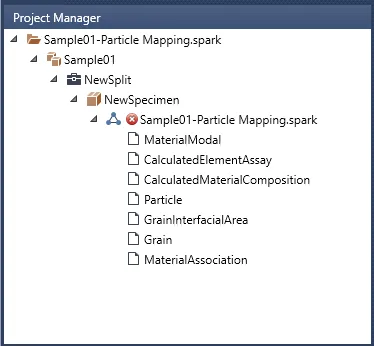
After connecting the syste to a data source(s), the next step is to create a project required to house the AMICS data set. Projects can be made by right-clicking anywhere in the "Project Manager" subpanel of the Data Interface Panel. A Project must be placed at the top level, and an unlimited number of Projects can then be nested to build the required project structure. As a quick start option, dragging and dropping any supported file into the Project Manager panel will auto-populate a project structure. Any project tree
Data Model Creation
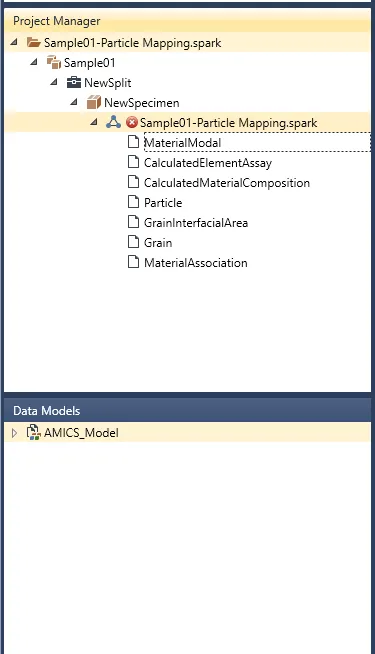
Once the experiment data from AMICS has been imported into the project management structure, AMICS Reports requires a Data Model to display and use the columnated data correctly. To create a new Data Model for AMICS data, Reports only requires the user to double-click an AMICS experiment to auto-create the data model. Once the data model is made, the same Data Model canbe reused for all future AMICS experimental data.
NOTE!
In the example image above, the experiment data has a red "X" mark, indicating that it currently does not have a valid data model. A data model must only be added to the experiment, specimen, split, or project to correct this. This will apply the data model to all Experimental data below where the Data Model has been added if the data does not already have a model associated with it.
Tabulated Data visualization
Once the previous steps have been completed, AMICS Reports can display the tabulated data from AMICS as separate tables. At this point, further data curation can be undertaken using the more advanced features of AMICS Reports. These features are explained in more detail in the later Functions Description section.