Material Liberation
Introduction
This predefined charting element will prebuild a table of a chart showing the liberation of the target material. This reporting element will allow the user to select the output to be either a chart or a table, and currently the output will provide only data from one data set per table, but can display multiple data sets on a plot.
Usage
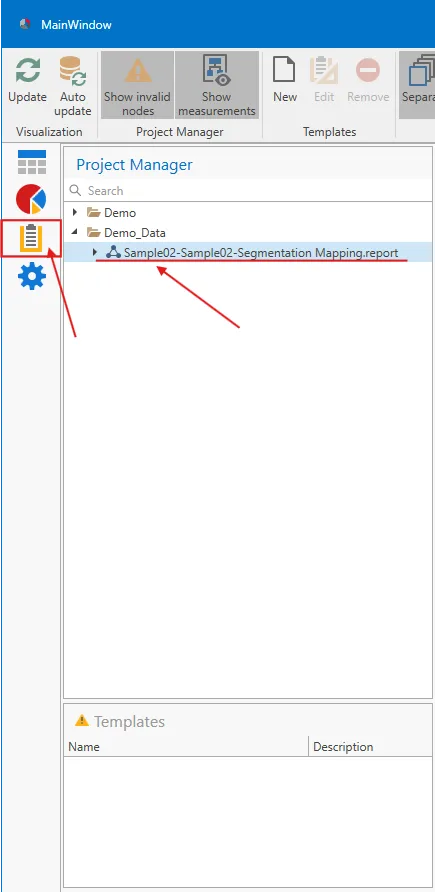
First, change to the Reporting Template page by using the icon located in the left-hand panel. In this example, we will use the "Separate" mode, which requires the user to select a single experiment data set (as shown in the example image below). In the case of the "Combine All" or "Combine Splits" options, the interface displays check boxes for Experiments, Specimens, Splits, Samples, and Projects. Allowing users to select specific datasets for reporting.
NOTE:
Due to the computing time, it is suggested to minimize the number of selected data sets when setting up the reporting template, as the Reporting application will use the selected data to populate the template during setup.
The option then is to either create a "New" report template or "Edit" an existing report template. To create a new report template, use the "New" button in the main ribbon. To edit an existing template, first select the existing template and use the "Edit" command on the main menu.
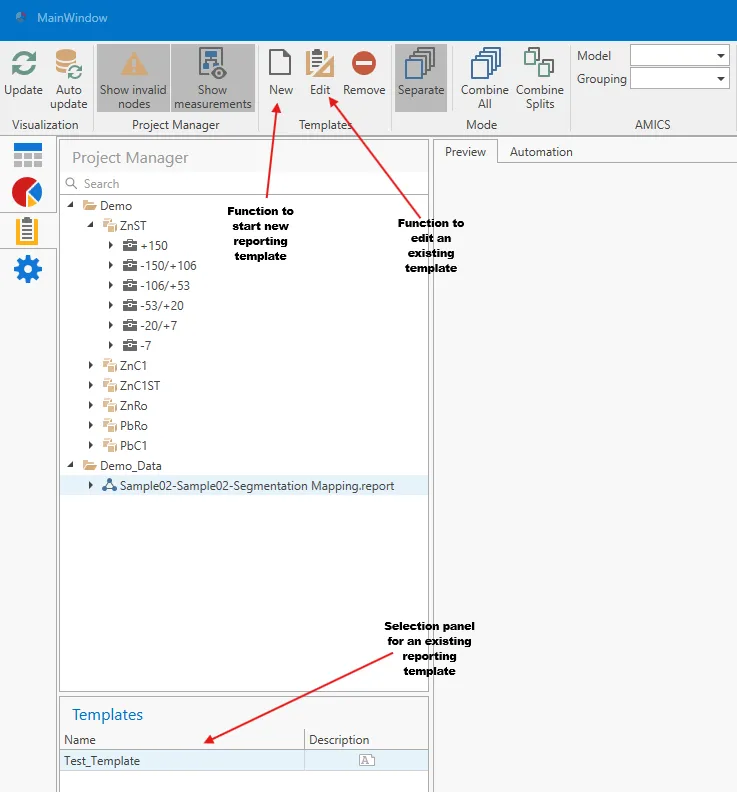
New or editing existing template functions. In the following usage example, we will show the case of a new Reporting Template; however, the process is the same for editing an existing template. In this example, a blank page will be presented, allowing the user to adjust the size of the reporting element. Once adjusted, use the "Material Liberation" control button to activate the function, which will change the cursor to cross-hairs, allowing the user to drag over an area to describe the size of the Material Liberation element.
The initial material liberation interface will allow the user to resize the Material Liberation using the square tabs in the corners and center of the element frame. Additionally, the user can select between a chart or plot style report by changing the "View Type" option. Note that the "Chart" type is the plot and the "Table" type is the tabulated data.
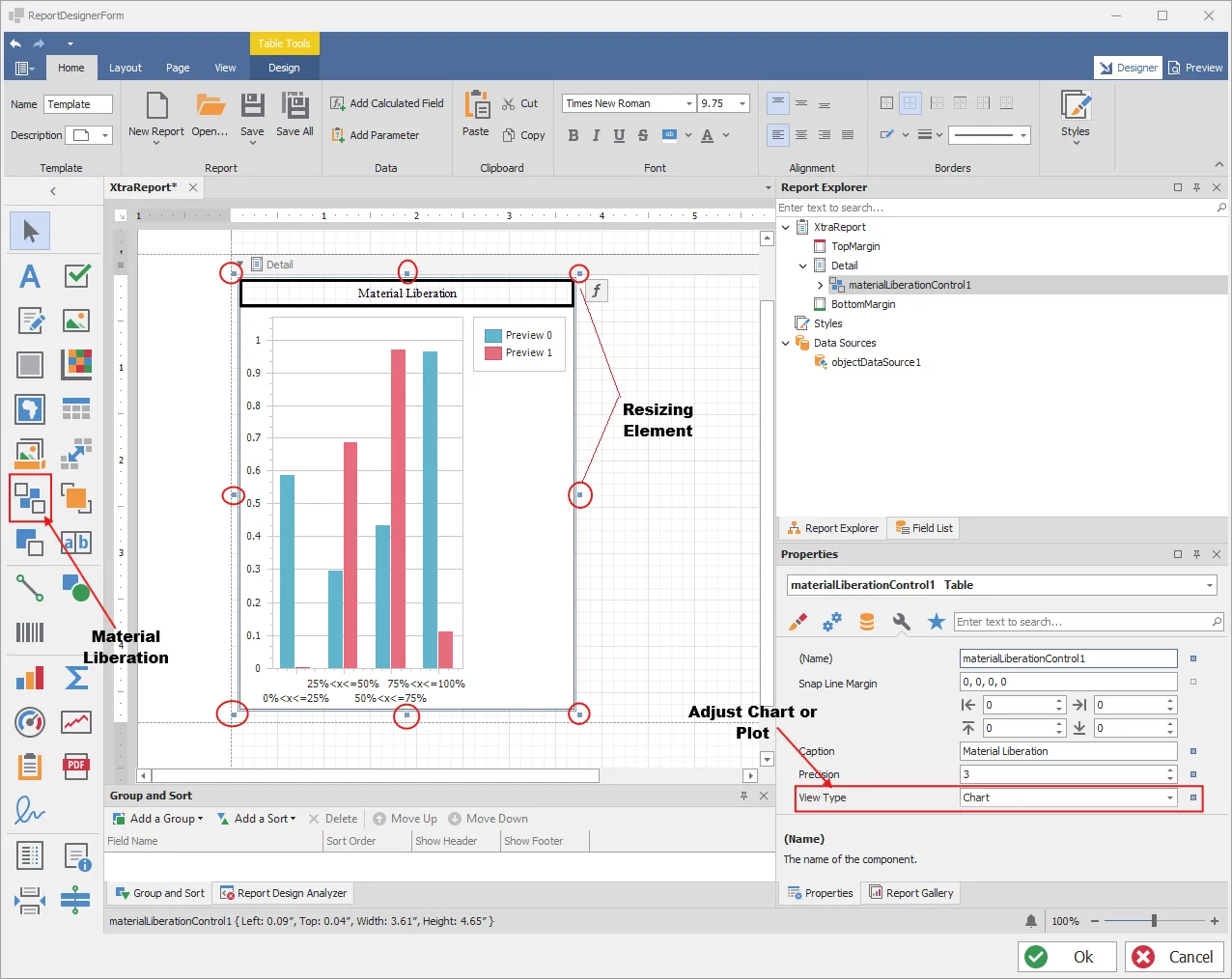
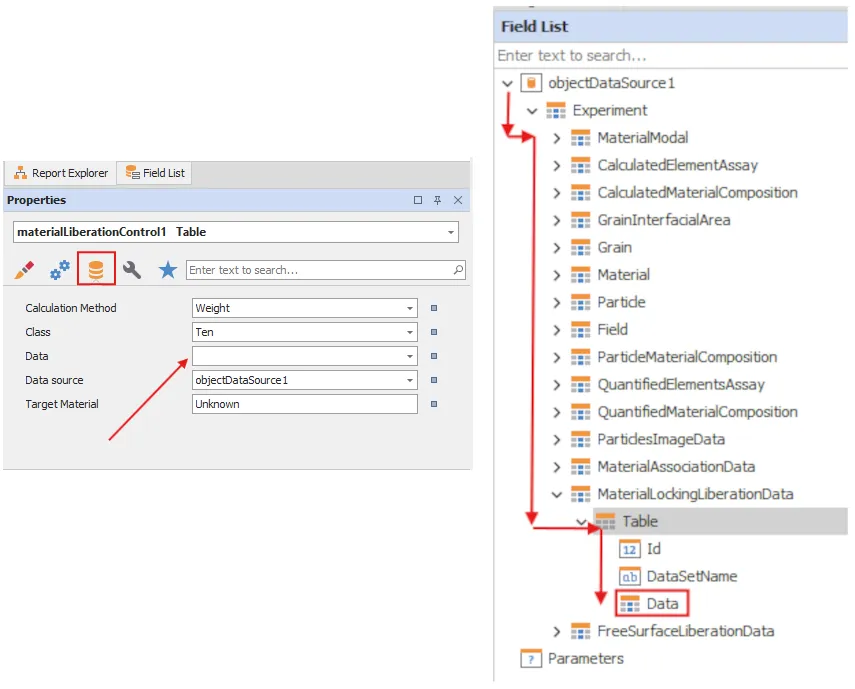
Regardless of the element type selected, to load the appropriate data into the template element, navigate to the Data link on the Properties panel and open the drop-down menu under the "Data" option. From the drop-down menu, open the "objectDataSource1" tree to the Experiment/MaterialLockingLiberationData/Data.
Finally, the target material for the liberation calculation needs to be entered into the Target Material settings on the Properties tab.
As of the current version of Reporting Tool, users will need to type in the Materal Name from the data model, though future version will change this to a drop down choice.
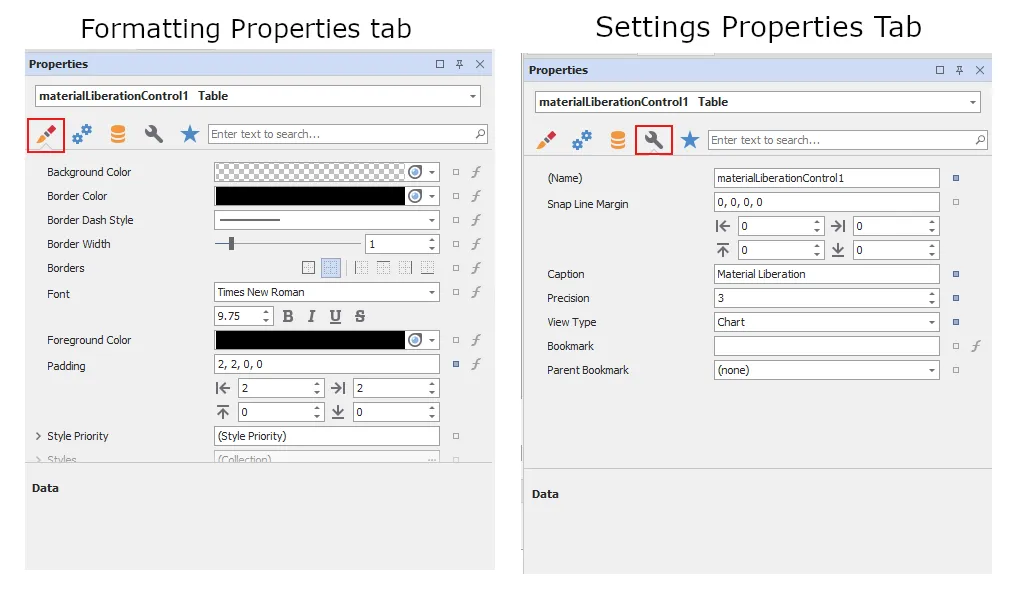
The Chart or Table can then be customised using the formatting and settings option tab in the Properties interface.