Global Grouping
A new group column can be added to any valid data table containing at least one column of string data, as grouping can only be processed on String data types. To access the grouping interface, click the "Add Grouping" button in the Main Menu Ribbon. This will bring up a new Grouping pop-up window:-
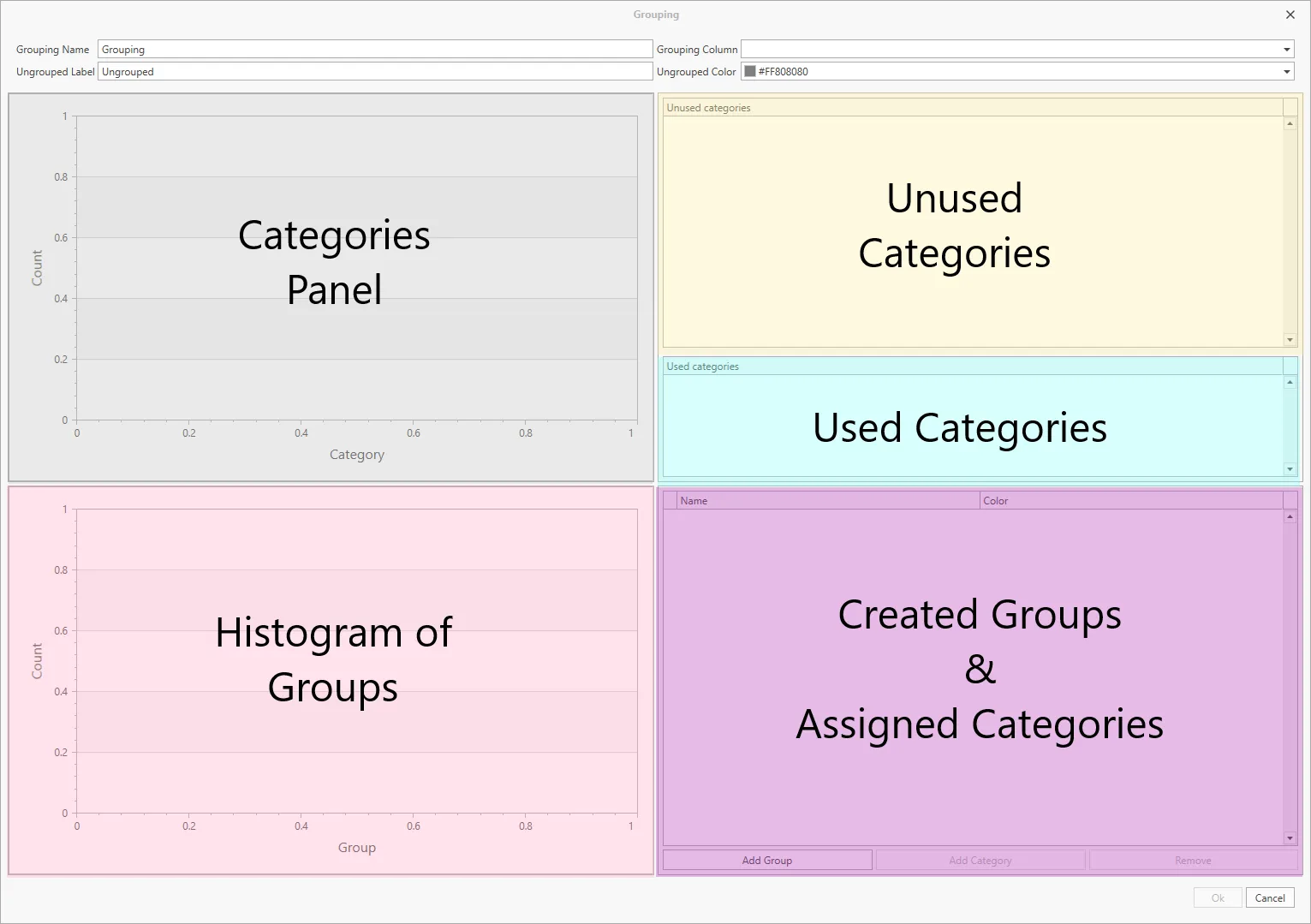
The grouping interface is made of six main areas. The four text interfaces at the top allow users to set base settings:-
Grouping Name - This textbox sets the group's name, which is shown in a new column of data in the main data visualization panel.
Grouping Column - This dropdown text box allows the user to select any valid string columns in the selected data table. This will populate the "Unused Categories" panel.
Ungrouped Label - This textbox sets the labels for rows that do not fit into any of the created groups.
Ungrouped Color - This dropdown interface sets the color used to describe the Ungrouped Category (defined above) in the Dashboard.
Unused Categories Panel - This panel will populate once a Grouping Column is updated with a selected string column in the data panel. Items in this panel can be selected and moved into groups. At which point they will be removed from this panel.
Used Categories - This panel will become populated by items which have been moved from the Unused Categories Panel to created groups.
Categories Panel - This panel will update with all the different categories in the selected column in the Grouping Column. In most cases the count will be "1", unless there are duplicate. In case of duplicates, the imported data should be checked for consistency.
Created Groups & Assigned Categories - This panel will be populated with groups created by the users, and assigned categories will be located under the group it has been added to.
Historygram of Groups - This panel will update with a plot with each group shown on the x-axis and the y-axis showing the total number (counts) of rows which fit into each of the groups.